Why a 43" 4K TV Makes the Perfect Computer Monitor: The Ultimate Guide to Budget-Friendly Productivity
Discover why a 43" 4K TV makes the perfect computer monitor for Canadian users. Compare native 120Hz+ options, save hundreds vs dedicated monitors, and get the equivalent of four 1080p screens without bezels. Complete buying guide with real prices and recommendations.
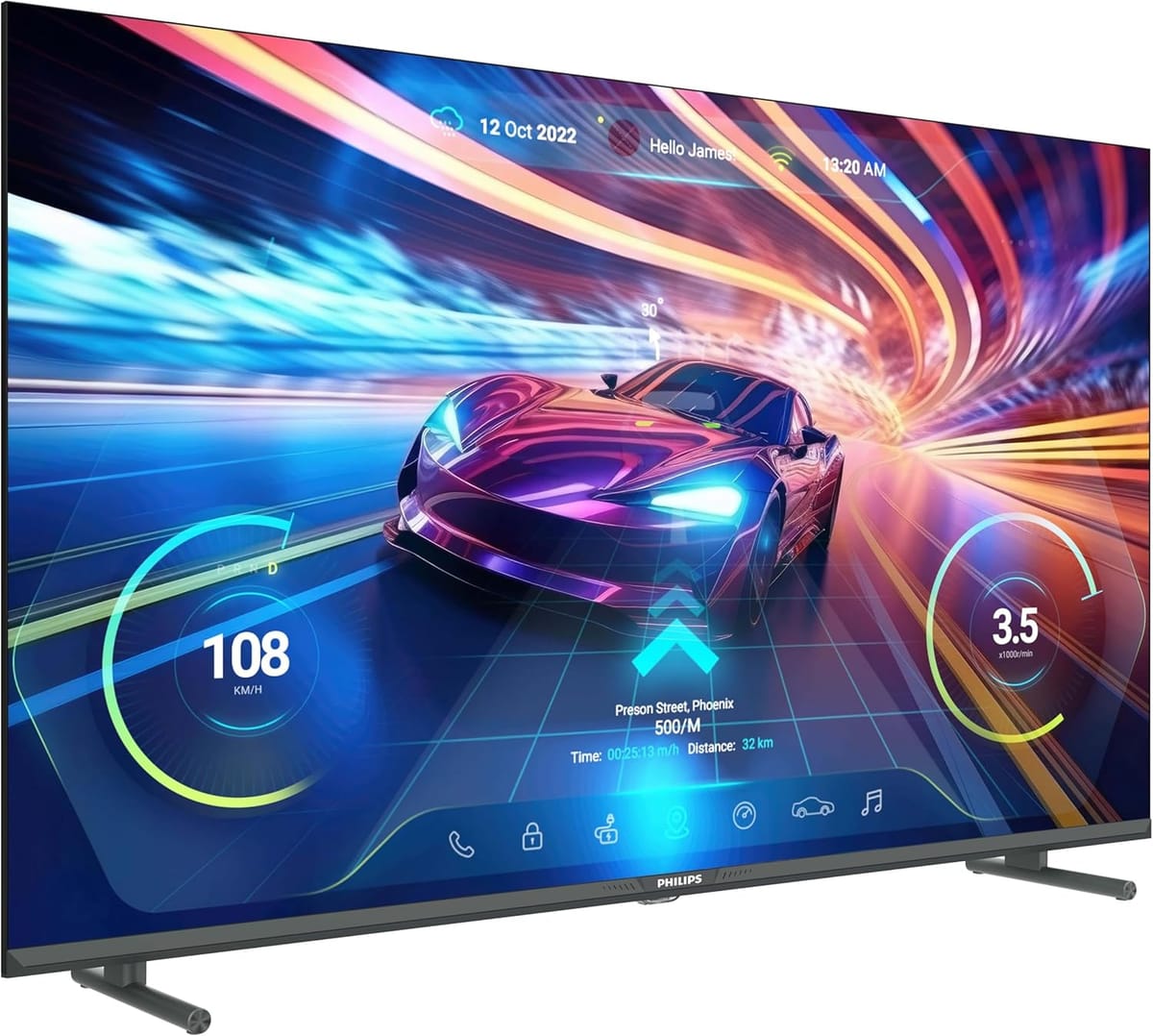
If you're shopping for a new computer monitor, you might want to stop scrolling through overpriced displays and take a look at your local electronics store's TV section instead. I know it sounds unconventional, but using a 43" 4K TV as a computer monitor has become one of the best-kept secrets among productivity enthusiasts, content creators, and budget-conscious tech users in Canada.
After extensive research into the Canadian market, I've discovered why this setup is gaining popularity—and why it might be the perfect solution for your workspace.
The Case for 43" 4K TVs as Monitors
It's Literally Four 1080p Monitors in One
Let's start with the math. A 43" 4K display has a resolution of 3840 x 2160 pixels. That's exactly four times the pixels of a standard 1920 x 1080 (Full HD) monitor. Picture this: you're essentially getting four 21.5" 1080p screens arranged in a 2x2 grid, all without bezels between them.
For anyone who's ever struggled with managing multiple browser tabs, documents, spreadsheets, or creative applications, this is a game-changer. You can have:
- Your email client open on one quarter
- A web browser with multiple tabs visible on another
- A document you're working on in the third
- Slack, Teams, or your music player in the fourth
All at once, with each section being the equivalent of a full HD display. No more constant window switching or buying multiple monitors and dealing with multiple cables, stands, and bezels interrupting your view.
The Price Advantage is Staggering
Here's where things get really interesting for Canadian shoppers. A 43" 4K TV costs significantly less than computer monitors with similar specifications.
Consider these real-world comparisons:
43" 4K TVs in Canada:
- Entry-level options: $300-$450
- Mid-range with 120Hz: $450-$600
- Premium models: $1,000-$1,400
43" 4K Computer Monitors in Canada:
- Gaming monitors: $680-$1,200+
- Professional displays: $1,500-$3,000+
You're looking at saving anywhere from 40% to 70% by choosing a TV over a dedicated computer monitor with the same screen size and resolution. That's money you could put toward upgrading your GPU, adding more RAM, or investing in a better keyboard and mouse.
The Bonus: It's Still a TV
Unlike a dedicated computer monitor, a 43" 4K TV can pull double duty. During work hours, it's your productive workspace. After hours, it transforms into an entertainment center. You can:
- Stream Netflix, Disney+, or Amazon Prime in 4K
- Connect your PlayStation 5 or Xbox Series X for gaming
- Watch sports or YouTube on a proper big screen
- Use smart TV features without needing your computer on
This versatility is particularly valuable if you're setting up a home office in a small apartment or condo where space is at a premium. One device serves multiple purposes, saving you both money and real estate.
Why 43 Inches is the Sweet Spot
Not Too Big, Not Too Small
When it comes to using a TV as a monitor, size matters more than you might think. At a typical desk viewing distance of 24-36 inches, a 43" display sits in that goldilocks zone—it's large enough to appreciate all that 4K real estate without being so massive that you're constantly turning your head to see content in the corners.
Why not go bigger?
I tested this extensively, and here's what happens with larger displays:
- 50"+ screens: You'll find yourself struggling to see the entire screen without moving your head. The top corners become hard to reach with your mouse, and reading text in the upper portions of the screen requires neck strain.
- Productivity suffers: While a 55" TV might sound appealing, at desk distance it's actually more tiring to use. Your eyes have to travel too far to scan content.
- Pixel density drops: Going from 43" to 55" 4K means spreading the same 3840x2160 pixels over a larger area, making individual pixels more visible.
Why not smaller?
- 40" or less: You're giving up too much screen space. The whole point of this setup is maximizing your workspace while keeping excellent pixel density.
- Cost efficiency drops: Smaller 4K displays don't offer the same value proposition. You might as well get a dedicated monitor at that point.
At 43", you get roughly 102 pixels per inch (PPI), which is perfect for desktop use at 100-150% scaling in Windows or macOS. Everything stays sharp and readable without being microscopic.
Understanding Refresh Rates: 60Hz vs 120Hz+
60Hz: Perfectly Fine for Most Users
Let's address the elephant in the room: not everyone needs 120Hz or higher refresh rates. If you're primarily using your computer for:
- Office work (Word, Excel, email)
- Web browsing and research
- Video editing and photo editing
- Software development
- General productivity tasks
Then a 60Hz display will serve you perfectly well. The higher pixel count of 4K at 43" will give you more benefits for these tasks than a higher refresh rate. You'll appreciate the screen real estate and sharp text far more than you'd notice the difference between 60Hz and 120Hz when scrolling documents or browsing websites.
Many excellent 43" 4K TVs with 60Hz panels are available in Canada for $300-$450, making them incredibly budget-friendly options.
120Hz+: The Next Level for Gamers and Enthusiasts
However, if you're a gamer or someone who appreciates ultra-smooth motion, investing in a native 120Hz or 144Hz display is absolutely worth the premium. Here's what you gain:
For Gaming:
- Smoother gameplay in fast-paced shooters and racing games
- Reduced motion blur during quick camera movements
- Lower input lag for competitive gaming
- Better compatibility with PlayStation 5 and Xbox Series X (which support 120Hz)
For General Use:
- Smoother window animations and scrolling
- Less eye strain during extended use (debatable, but many users report this)
- More responsive cursor movement
- Better experience with high-frame-rate video content
The difference between 60Hz and 120Hz+ is most noticeable when gaming or scrolling through content quickly. If these are important to your use case, the extra $100-$200 investment is justified.
The Best Native 120Hz+ 43" TVs in Canada (December 2025)
After extensive research, I've identified thetop native 120Hz and 144Hz options available at Canadian retailers. These are true high-refresh-rate panels, not 60Hz displays with motion smoothing marketing tricks.
1. Philips 43PUG7674/F6 - Best Value for 144Hz Gaming

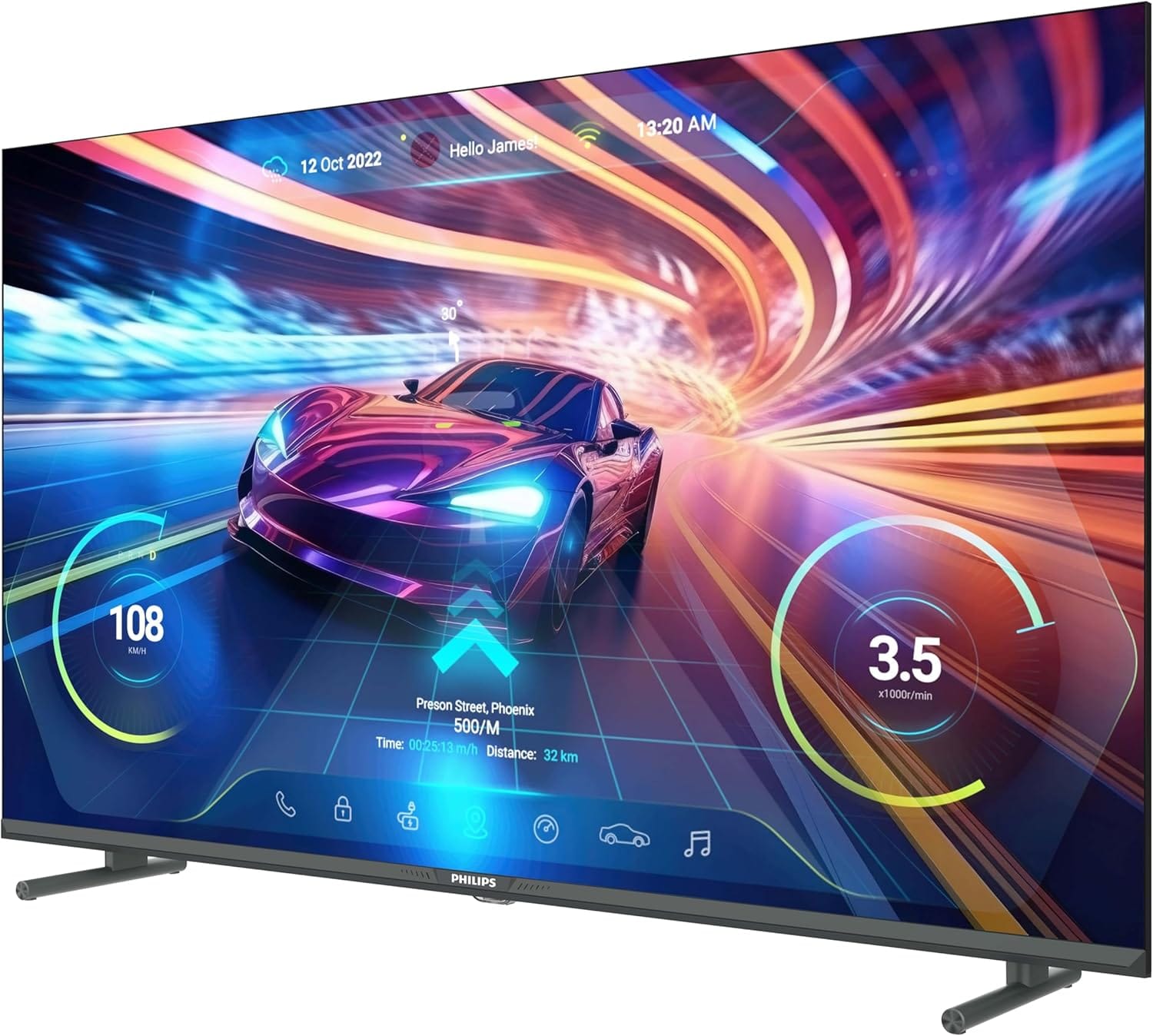
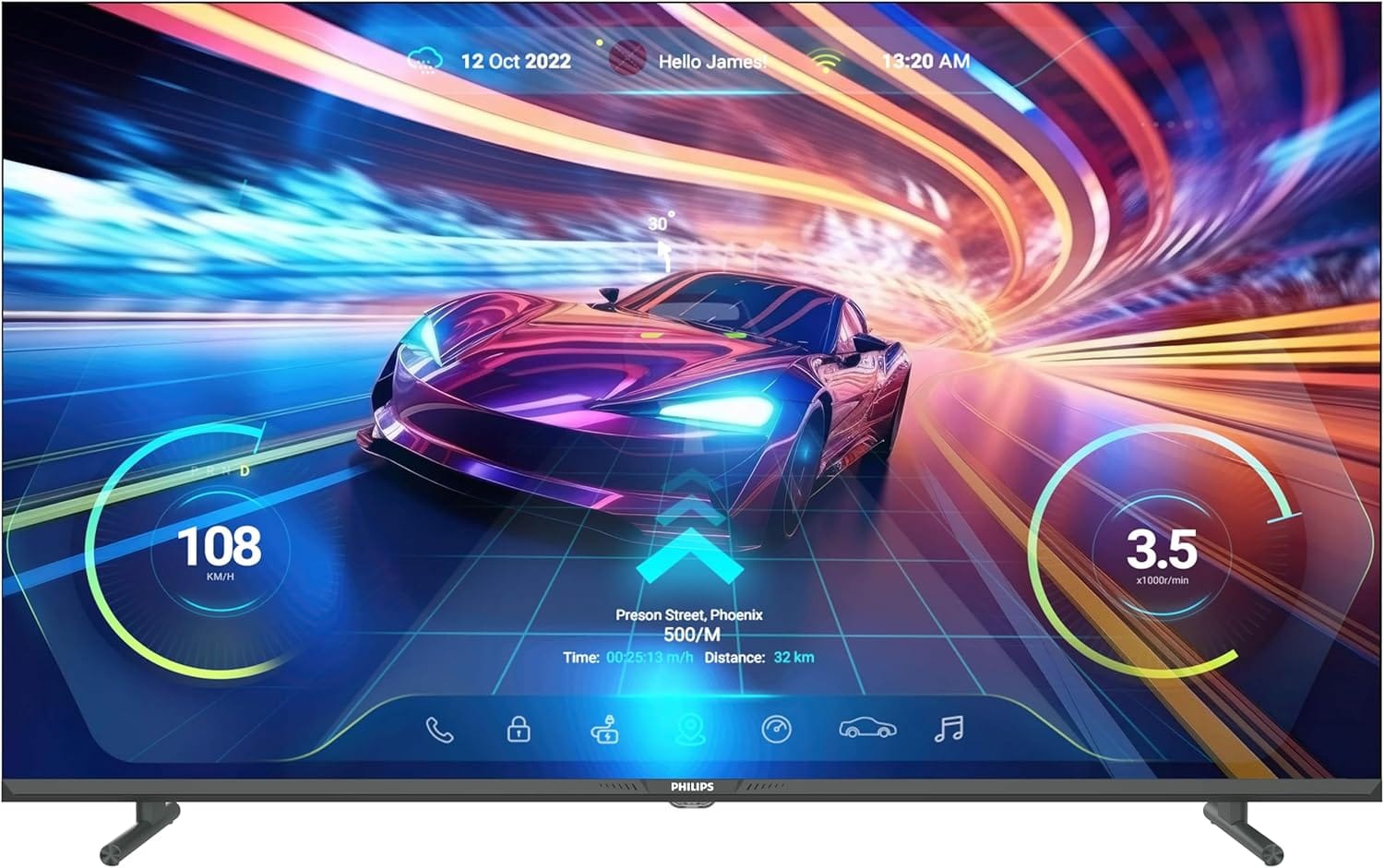
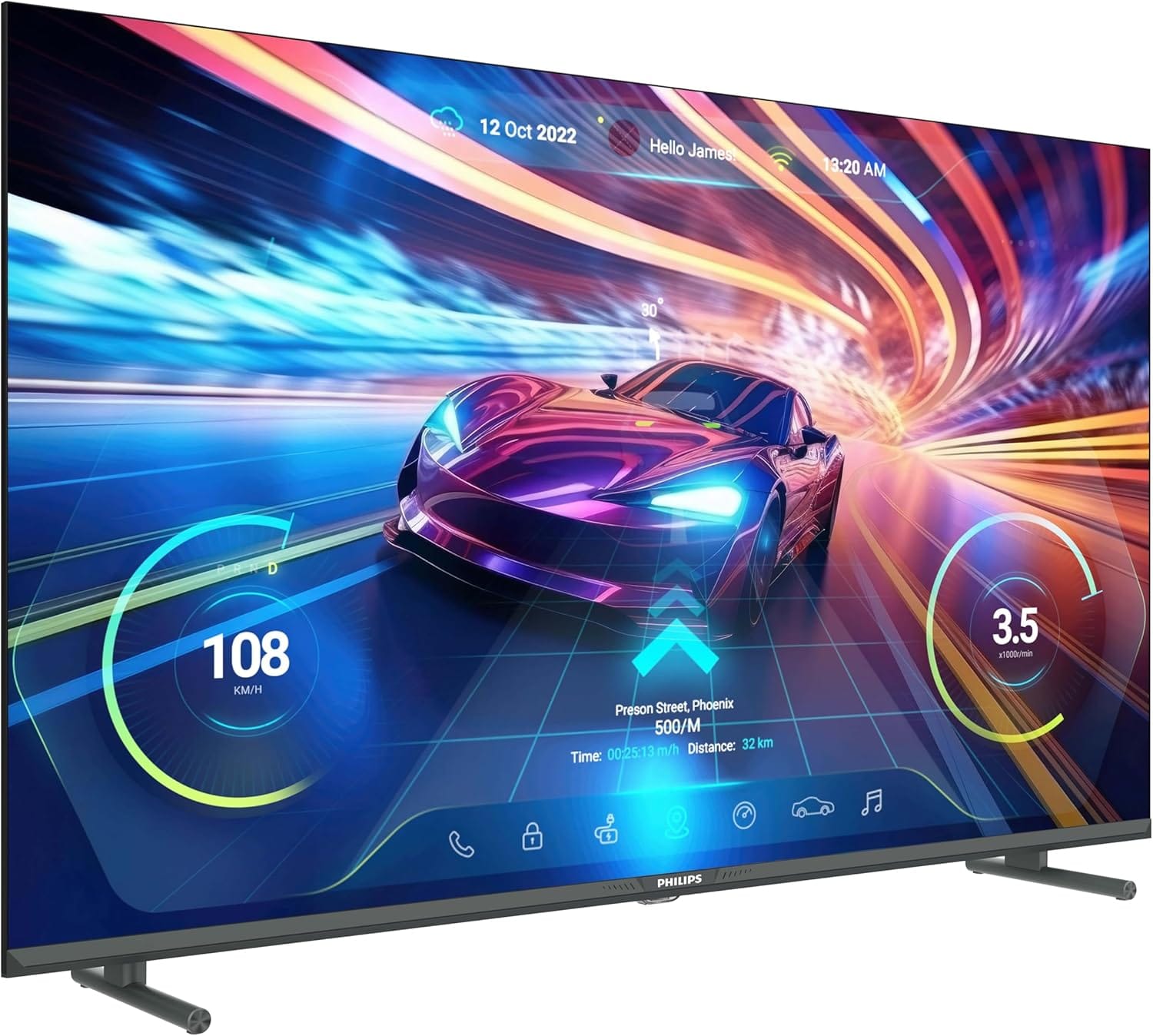
Native Refresh Rate: 144Hz
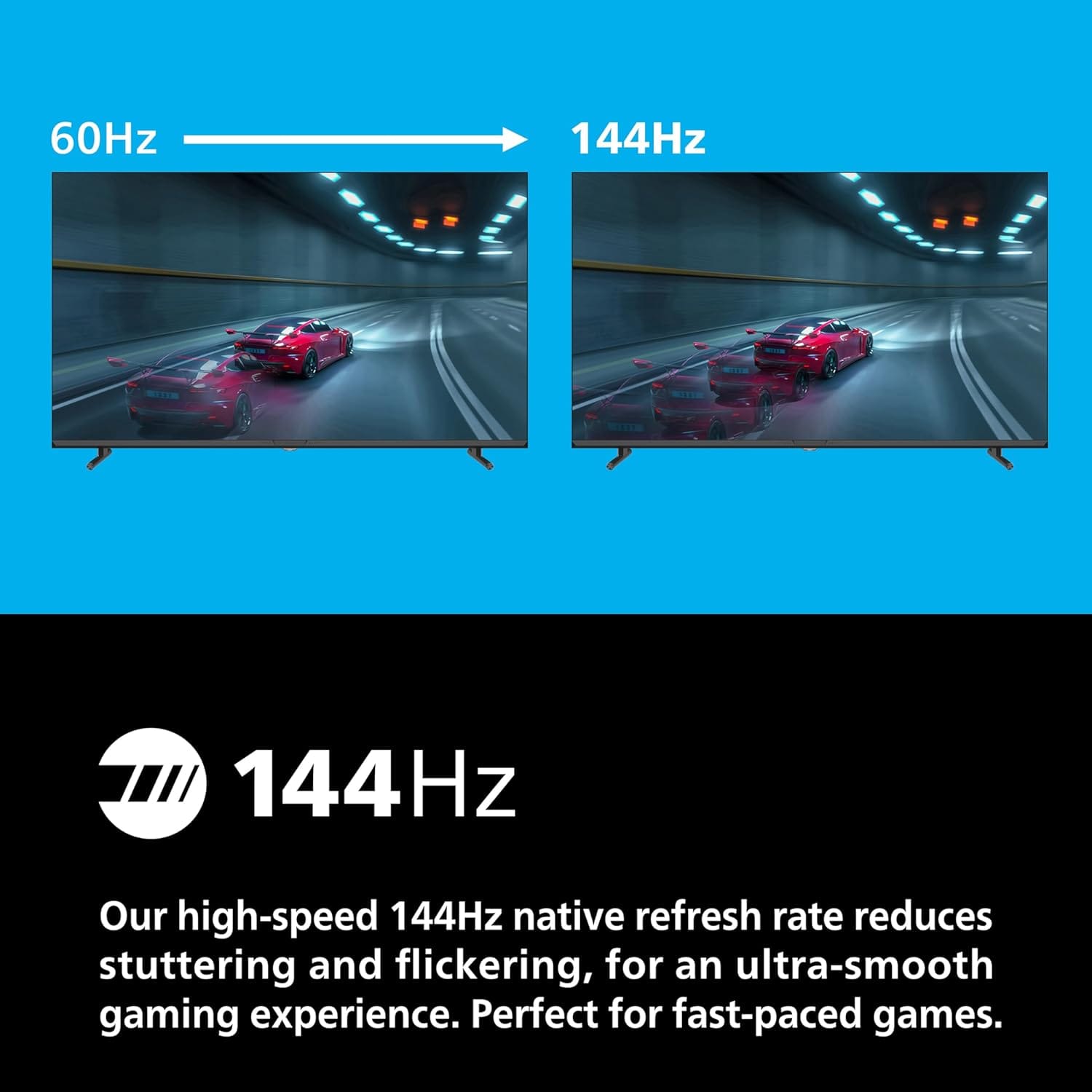
This is hands-down the best value proposition in the Canadian market right now. The Philips offers true 144Hz native refresh rate at less than half the price of competitors. It's built specifically as a gaming display but works excellently as a productivity monitor.
Key Features:
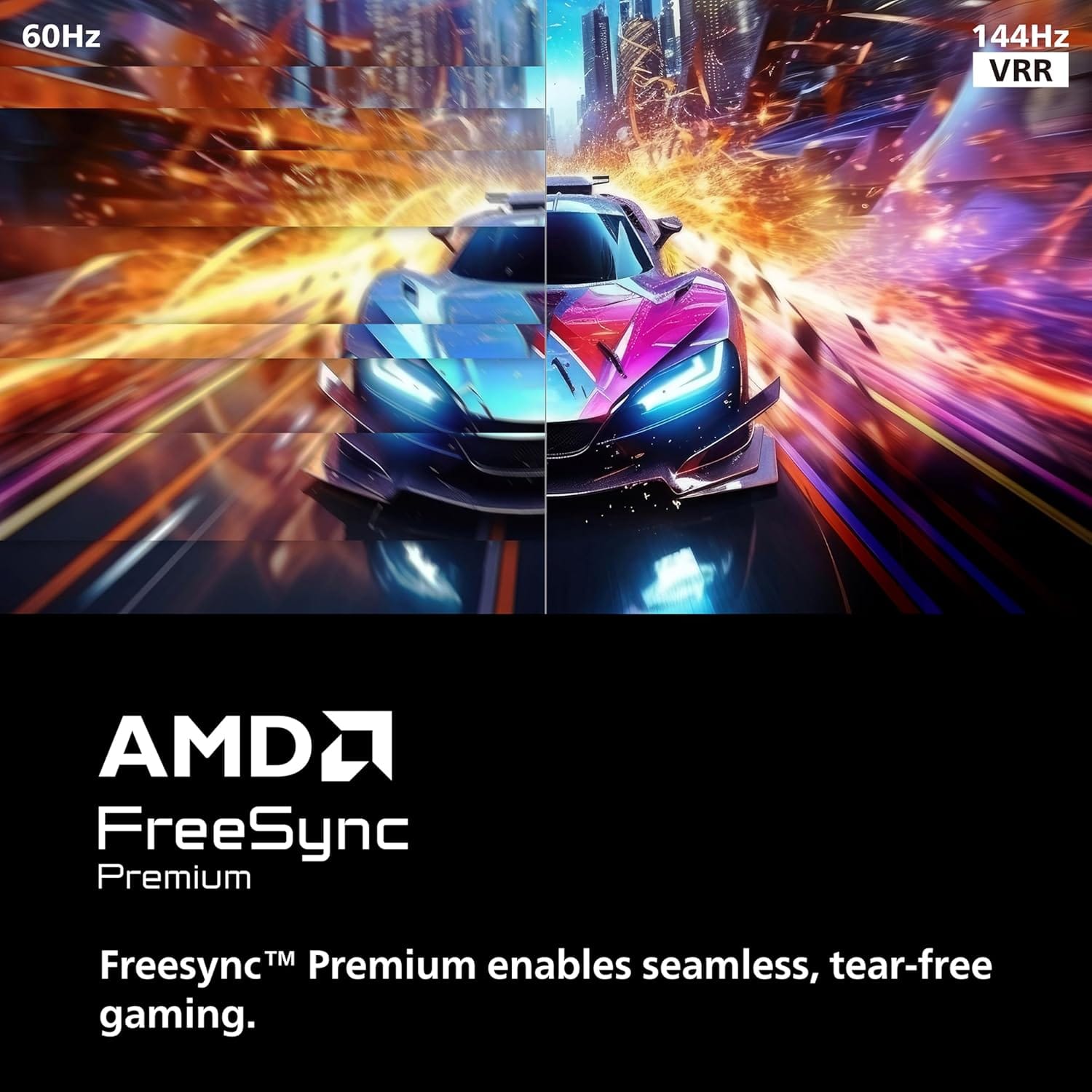
- Native 144Hz refresh rate (not motion interpolation)
- AMD FreeSync Premium for tear-free gaming
- HDMI 2.1 on inputs 3 and 4 (inputs 1 and 2 are HDMI 2.0)
- Low input lag optimized for gaming
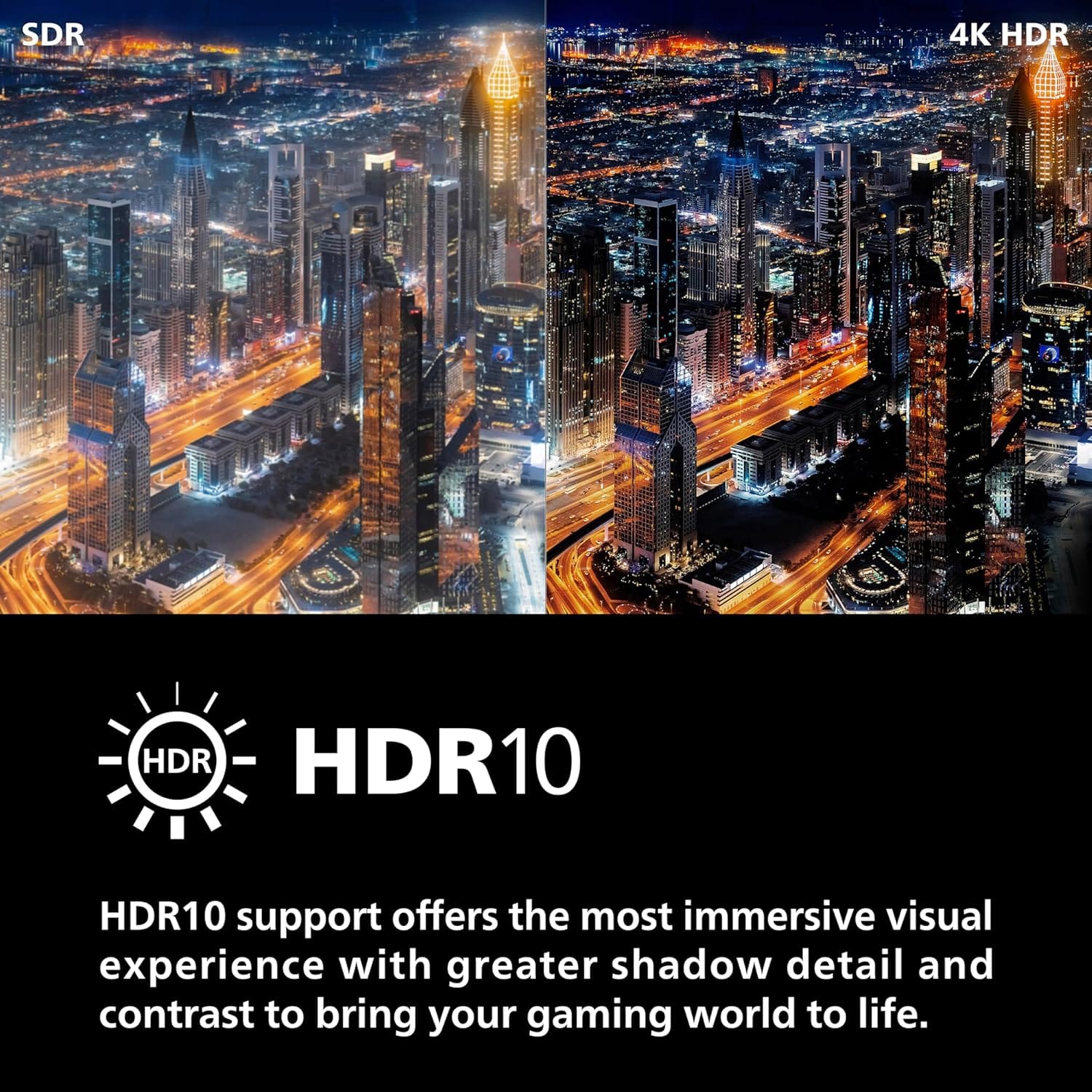
- HDR10 support
- Google TV smart platform
Who it's for: Gamers and enthusiasts who want the highest refresh rate at the lowest price. If you're building a PC gaming setup or want smooth 144fps performance, this is your best bet.
Important note: You'll need an ultra high-speed 48Gbps HDMI cable to achieve 4K at 144Hz, and make sure to use inputs 3 or 4.
2. Samsung The Frame 43" (2024) - Best Premium Design
Price: $998 (Costco) | $1,399.95 (Best Buy)
Native Refresh Rate: 120Hz
If aesthetics matter to you, The Frame is in a class of its own. This TV doubles as art when not in use, with a matte anti-glare screen and customizable bezels that make it look like a picture frame on your wall.
Key Features:
- Native 120Hz panel
- Quantum Processor 4K for excellent upscaling
- Matte display reduces glare significantly
- Art Mode displays artwork when off
- Quantum HDR for vibrant colors
Who it's for: Remote workers and content creators who want their home office to look polished and professional. The matte screen is particularly valuable ifyou have windows near your desk.
Value proposition: The $401 savings at Costco (compared to Best Buy) makes this much more compelling. At under $1,000, it's a premium purchase but delivers exceptional quality and unique features no other TV offers.
3. Samsung QN43QN90F Neo QLED - Best Picture Quality
Native Refresh Rate: 120Hz (up to 165Hz capability)
This is the flagship 43" TV from Samsung, and it shows. The Neo QLED technology with Mini LED backlighting delivers the best picture quality you'll find in this size category.
Key Features:
- Native 120Hz with 165Hz support
- Mini LED with local dimming zones for incredible contrast
- NQ4 AI Gen3 Processor for superior upscaling
- Four HDMI 2.1 ports
- Neo Quantum HDR for stunning HDR performance
- FreeSync Premium Pro
Who it's for: Enthusiasts who want the absolute best picture quality and don't mind paying premium prices. If you're doing color-critical work or want the best gaming and movie experience, this is it.
Note: This is significantly more expensive, but you're getting flagship-level performance.
4. Samsung Odyssey Neo G7 43" - Best Gaming Monitor Alternative
Price: $679.99 - $1,199 (varies by retailer)
Native Refresh Rate: 144Hz
Technically a gaming monitor rather than a TV, but it includes Smart TV features and works brilliantly as both. This is the sweet spot for serious PC gamers who also want TV functionality.
Key Features:
- Native 144Hz 4K panel
- Mini LED with Quantum Matrix technology
- 1ms MPRT response time
- Samsung Gaming Hub built-in
- Tizen Smart TV platform
- DisplayPort and HDMI 2.1
Who it's for: PC gamers who want monitor-levelperformance with the convenience of smart TV features. The faster response time makes a real difference in competitive gaming.
5. LG C3 OLED 42" - Premium OLED Alternative
Price: $898 (Visions Electronics - on sale)
Native Refresh Rate: 120Hz
While technically 42" instead of 43", this deserves mention as an alternative option. OLED technology offers perfect blacks and incredible contrast that LED/LCD panels simply cannot match.
Key Features:
- Native 120Hz OLED panel
- Perfect black levels with infinite contrast
- α9 Gen6 AI Processor
- Four HDMI 2.1 ports
- G-Sync and FreeSync VRR support
- Dolby Vision and Dolby Atmos
Who it's for: Content creators, photographers, and videographers who need perfect color accuracy and contrast. Also excellent for cinephiles who want the best movie-watching experience.
Important considerations: OLED panels can suffer from burn-in if static images (like taskbars) are displayed for extended periods. Use screensavers and auto-hide taskbars if you choose this route.
Quick Comparison Table
| Model | Price | Refresh Rate | Best For | Value Rating |
|---|---|---|---|---|
| Philips 43PUG7674 | $449.99 | 144Hz | Budget gamers | ⭐⭐⭐⭐⭐ |
| Samsung Frame 43" | $998-$1,400 | 120Hz | Design-conscious | ⭐⭐⭐⭐ |
| Samsung QN90F | $1,398 | 120-165Hz | Picture quality | ⭐⭐⭐ |
| Odyssey Neo G7 | $680-$1,199 | 144Hz | PC gaming | ⭐⭐⭐⭐ |
| LG C3 OLED 42" | $898 | 120Hz | Content creation | ⭐⭐⭐⭐ |
Important Considerations Before Buying
Input Lag and Response Time
Most modern TVs designed for gaming have input lag under 20ms, which is perfectly acceptable for all but the most competitive gamers. The models I've listed above all have gaming modes that reduce input lag significantly.
For competitive esports, you'll want to prioritize the Philips or Odyssey Neo G7, which have the lowest input lag specifications.
HDMI 2.1 is Essential for 120Hz+
To actually use 4K at 120Hz or 144Hz, you need:
- An HDMI 2.1 port on the TV
- An HDMI 2.1 compatible graphics card or gaming console
- An ultra high-speed (48Gbps) HDMI cable
Don't assume the HDMI cable that came with your device will work. Budget $15-$30 for a quality certified cable.
Text Clarity and Scaling
At 43" 4K, Windows and macOS will work perfectly fine at 100% scaling by default. At this size, you get roughly 102 pixels per inch (PPI), which delivers sharp, readable text without any adjustments needed right out of the box.
If you prefer larger text or have vision considerations, you can easily adjust to 125% or 150% scaling in your display settings. Conversely, if you want maximum screen real estate, keeping it at 100% gives you the full benefit of all those pixels for productivity.
The good news: at 102 PPI, text looks crisp and clear at any of these scaling levels.
Check Your Desk Setup
Before buying, measure your desk depth. You'll want at least 24 inches (60cm) of distance between your eyes and the screen, with 30-36 inches being ideal. If your desk is shallow, you might find 43" overwhelming.
Real-World Use Cases
The Software Developer
Mark, a full-stack developer from Toronto, switched from a dual 24" monitor setup to a 43" 4K TV last year:
"I can have VS Code taking up half the screen, Chrome with documentation on a quarter, and my terminal and Slack in the remaining space. No bezels between windows, everything at once. The $450 I spent on the Philips has saved me hours of window switching."
The Content Creator
Sarah uses a Samsung Frame as her editing monitor:
"The matte screen was a game-changer for my home studio setup. I edit YouTube videos on Premiere Pro with the timeline taking up the bottom third, preview window on the left, and effects panel on the right. When I'm done for the day, it displays my favorite photography as art. My clients love it when they visit."
The Hybrid Worker
James in Vancouver uses his LG C3 OLED for work-from-home days:
"During the day, it's my productivity beast with perfect black text on white backgrounds. The OLED makes colors pop when I'm working on presentations. At night, the kids use it for PS5 gaming, and my wife and I watch movies. One device, three purposes. Best $900 I've spent."
Final Verdict: Is a 43" 4K TV Right for You?
Choose a 43" 4K TV as your monitor if you:
- Want massive screen real estate without buying multiple monitors
- Value seeing everything at once without constant window switching
- Want to save $300-$1,000 compared to dedicated monitors
- Appreciate having dual TV/monitor functionality
- Have desk space that can accommodate 24-36 inches viewing distance
- Work with multiple applications simultaneously
Skip this setup if you:
- Have a shallow desk (under 24 inches deep)
- Primarily work with a single full-screen application
- Need extremely low input lag for competitive esports (stick to gaming monitors)
- Want perfect color accuracy for professional photo/video work (unless you get the OLED)
For most Canadian consumers—especially remote workers, developers, content creators, and gamers—a 43" 4K TV offers unbeatable value as a computer monitor.
My top recommendation: Start with the Philips 43PUG7674 at $449.99 if you want 144Hz gaming capability, or look for budget 60Hz options if you're primarily doing productivity work. The jump in screen real estate and productivity is worth far more than the modest investment.
is worth the upgrade if you value design and want something that looks more like furniture than tech.
The sweet spot of 43" combined with 4K resolution delivers the perfect balance of size, pixel density, and price. Whether you're coding, creating content, or gaming, this setup will transform how you work and play—all while saving you hundreds of dollars.
Have you made the switch to a TV as a monitor? Share your experience in the comments below!